
Your child opens Core5 at the kitchen table, types their details, and gets an error instead of a lesson. Maybe the screen spins for a minute and then stops. Maybe it asks for a site address nobody remembers. If that sounds familiar, you are not alone. Lexia Core5 login at home depends on how your child’s school set up the program, so the steps feel confusing until you know which login method your child uses. This guide walks you through signing in, what to check when it fails, and who to contact when only the school can help.

Quick Answer: How Do You Log In to Lexia Core5 at Home?
Core5 works at home only when your child’s school or district has purchased the program and created an account for your child. Sign in with the same method the school uses, which is usually “Log in with Clever” or the school login on the Core5 site. If the app asks for a teacher’s email or a site-specific address, use the details the school gave you.
Why Home Login Is Different From School Login
At school, a teacher usually sets up the device, opens the right page and signs students in through a classroom routine. At home, nobody is standing next to the screen. The device may be a personal laptop, a shared family tablet or a school-issued iPad. Each one can have different saved accounts, browser settings and app versions. That is why the same login that worked in class can fail at home.
Lexia’s own help material notes that students can use Core5 at home when the school has bought the program and the student has an account. The steps are not difficult, but they do depend on the school’s setup, so this guide focuses on the parts you can check yourself.
What You Need Before You Start
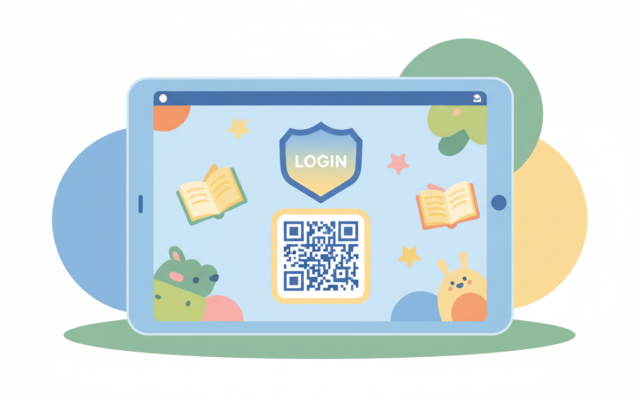
- Your child’s username and password, or their login card or QR badge
- The Core5 site address from the school, if they provided one
- A supported device: a computer, a Chromebook, or an iPad running a current version of iOS
- A stable internet connection and a web browser that is up to date
- Five minutes of patience for the first sign-in
Lexia notes that a site-specific URL can make sign-in easier on shared devices. If you do not have one, ask your child’s teacher for it. It is much easier to save the right address once than to search for it every evening.
Step-by-Step: Log In on a Computer or Chromebook
- Open the right address. Use the site address from the school. If the school has not given you one, start from Lexia Learning’s official website and look for the Core5 login page.
- Choose the school login option. Select “Use My School Login” or the “Log in with Clever” button, whichever your school uses.
- Enter the details. Type the Clever or school username and password. Check capital letters, because many logins are case-sensitive.
- Open Core5. Find the Core5 icon on the dashboard and open it.
- Check the name. Confirm that your child’s name appears before the lesson starts. If you see someone else’s name, sign out right away.
On a shared family computer, it is a good idea to sign out of Clever at the end of each session. That way, the next person does not accidentally continue under your child’s account.
Step-by-Step: Log In on an iPad
- Install the apps. Download the free Lexia Core5 Reading app and the free Clever app from the App Store.
- Sign in to Clever. Open the Clever app and enter your child’s details.
- Open Core5. Tap the Core5 icon in the Clever portal.
- Enter the teacher’s email if asked. Some setups ask for a teacher’s email before the login screen appears. Use the one your school provided.
Some students use a QR badge instead of typing a password. If the badge does not work, use the login button in the app and enter the full details. Badges can fail after app updates, so the typed login is a reliable backup.
A Real-World Example: The Shared Family Tablet
Imagine a family with two children and one tablet. The older child signed in for school last year at a different district. The younger child then tries Core5 and sees a login error. The fix is often simple: the old account is still saved on the tablet. Signing out of that account, closing the app and signing in with the correct child’s Clever details usually solves it. This pattern is one of the most common causes of home login errors, so check it early.
Common Login Problems and Quick Fixes
Most home login problems fall into a few categories. Use this table to match what you see with the likely cause and the first thing to try:
| What you see | Likely cause | What to try first |
|---|---|---|
| Wrong username or password | Typo or capital letter mismatch | Retype carefully, check caps lock |
| Clever login request cannot be completed | Old school account saved on the device | Sign out of the old account, then sign in again |
| QR badge does not work | Badge issue in that app version | Use the Clever login button instead |
| Error on an iPad | Outdated app or unsupported iPad | Update the app and iOS, then restart the iPad |
| Page will not load | Browser cache or old site address | Clear recent browsing data, use the school’s address |
If you need a detailed walkthrough of Clever errors, read our guide to the Lexia Core5 Clever login error.
Quick Checklist Before You Contact the School
- Did you use the site address the school gave you?
- Did you choose the login method the school uses?
- Did you sign out of any old accounts on this device?
- Is the app and iOS (or browser) up to date?
- Did you try a private window on a computer?
- Did you write down the exact error message?
If you can tick most of these boxes and the login still fails, it is time to contact the school. Having the error message and device type ready will save everyone time.
When to Contact the School
Reach out to your child’s teacher or school IT team if your child has no account, a login card is missing, or the program fails on every device you own. Only the school can reset a password, print a new card or confirm that Core5 is assigned to your child. Schools also manage the official site address and can tell you whether home access is included.
A short, clear message works best. For example: “My child, [name], cannot sign in to Core5 at home. The device is an iPad running the latest iOS. The error says the login request cannot be completed. Could you check the account and the Core5 assignment?”
Frequently Asked Questions About Lexia Core5 Login at Home
Can my child use Core5 at home for free?
Core5 is usually provided through a school or district. Ask the school whether your child’s account includes home access. Do not pay a third party for a school account.
Do I need the Clever app to log in?
On iPads, many schools use the Clever app. On a computer, you may use the Clever button on the Core5 site. Your school decides which method to use, so ask before you start.
What if my child forgot the password?
Ask the teacher or school administrator. They can reset the password and print a new login card. Avoid trying many passwords, because some systems lock accounts after repeated failures.
Can I create the account myself?
No. Schools create and manage Core5 accounts, so contact them for any account changes, including name corrections.
Is it safe to save the password on the device?
On a shared device, avoid saving passwords in the browser. Use the login card or type the details each time, and sign out after each session.
Final Thoughts
A smooth Core5 login at home comes down to three things: the right login method, a supported device and an active school account. Keep the school’s details in one place, sign out of old accounts, and contact the teacher early when something needs a reset. With a little preparation, the login becomes a two-minute routine instead of a nightly problem.
Want more help? Share this guide with a parent or teacher who is setting up Core5 this week, and leave a comment with the exact error you see. Other families may have already solved it.
TechPks is an independent guide and is not affiliated with Lexia Learning. Confirm steps with your school’s Core5 administrator, because account setup varies by district.

Leave a Reply