
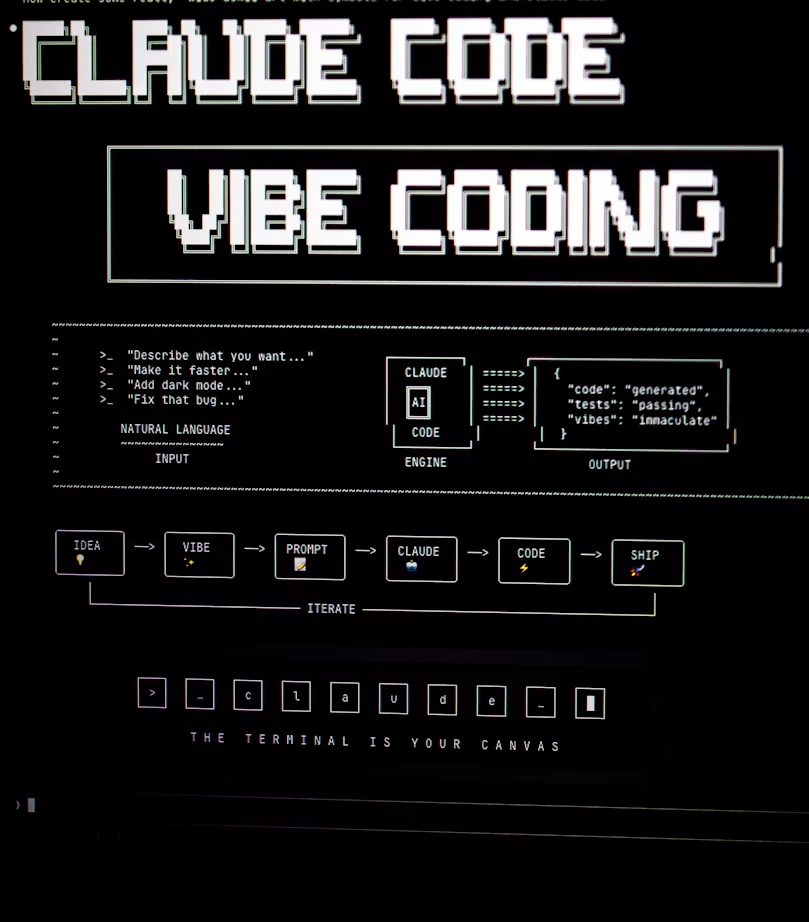
If you use Claude Code in a terminal, you may have noticed a small status line that says /rc active while you work. It is not an error. It means Remote Control is running, so your current session can be reached from another device such as your phone or a web browser. This guide, written on November 1, 2026, explains what /rc active means, how to turn Remote Control on, how to connect from your phone and what to check when it does not work.
Quick Answer: What Does “/rc active” Mean?
/rc active appears when Claude Code’s Remote Control feature is connected. The session keeps running on your computer, and you can open its link on another device. Typing /rc active as a command does nothing, because it is a status indicator, not a command.
What Is Remote Control in Claude Code?
Remote Control lets you continue a Claude Code session from a browser or the Claude mobile app. Your code, files and project settings stay on your machine. The phone or browser acts as a window into that session, not a copy of your project. This is useful when you start a long task and need to step away from the desk.
The Commands You Need
| Where you are | Command | What it does |
|---|---|---|
| Inside a session you already have open | /remote-control or /rc |
Turns Remote Control on for the current session and keeps its history |
| Your terminal, starting a new server | claude remote-control |
Starts a Remote Control server that can host sessions |
| Your terminal, one interactive session | claude --remote-control or claude --rc |
Starts a normal session with Remote Control on |
A common mistake is typing claude rc in the terminal. The short form rc works as a flag (--rc) and as a slash command (/rc), but not as a subcommand. Use claude remote-control from your shell instead.
Step-by-Step: Turn On Remote Control
- Open your terminal and go to your project folder.
- Start Claude Code with
claude. - Type
/rcand press Enter. - Wait for the message that says Remote Control is active. It shows a session name and a link.
- Open the link on your phone or browser, or press the space bar in the terminal to show a QR code and scan it.
If you always want Remote Control on, open /config inside Claude Code and turn on the option to enable Remote Control for all sessions. The VS Code extension also supports /remote-control or /rc in the prompt box.
How to Connect From Your Phone
- Scan the QR code with your phone camera to open the session in the browser or Claude app.
- Open the session link shown in the terminal on any device.
- Look for the session by name on claude.ai/code if you are already signed in to the same account.
Use the same Claude account on the phone and the computer. If the session does not appear, check that Claude Code is still running and that the status still shows /rc active.
Troubleshooting: When /rc Does Not Work
| Problem | What to check |
|---|---|
| “Unknown skill” error inside a session | Update Claude Code and try again. Some users reported this error in older versions; starting with claude remote-control works as an alternative. |
| No Remote Control active message | Confirm you are signed in with /login or claude auth login. |
| Link opens but does not connect | Check that your plan includes Remote Control and that you are on the same account. |
| Session missing on mobile | Confirm the terminal session is still running and the mobile app uses the same account. |
Remote Control availability depends on your Claude plan and organization settings. If your organization does not allow the feature, the connection may fail even when the command works on your computer.
Security Tips Before You Use It
- Only share the session link with yourself. Anyone with access to the session can see it.
- Stop Remote Control when you finish. Close the session or exit Claude Code.
- Approve actions carefully on your phone, because permission prompts still apply.
- Do not use Remote Control on a shared computer you do not control.
Frequently Asked Questions About /rc Active in Claude Code
Is /rc active an error?
No. It is a status message showing that Remote Control is connected. It only means something is wrong if your phone cannot reach the session.
How do I turn off /rc active?
Exit the Claude Code session or stop the Remote Control server in your terminal. The status indicator disappears when the connection ends.
Can I use /rc without a subscription?
Third-party guides say Remote Control requires a paid Claude plan and does not support API keys. Check Anthropic’s current documentation for your plan before you rely on it.
Final Thoughts
The “/rc active” message simply means your Claude Code session is reachable from another device. Use /rc inside a session, or claude remote-control from the terminal, check your plan and account, and stop the session when you finish. For more AI tool guides, visit our AI Tools category.
Commands and availability can change with new Claude Code versions. Confirm the current behavior in Anthropic’s official Claude Code documentation.


Leave a Reply