
A passkey is a safer way to sign in that replaces your password. Instead of typing a secret, you unlock your phone or computer with your fingerprint, face or screen-lock PIN, and your device proves it is really you. Passkeys are built on a standard created by the FIDO Alliance and the World Wide Web Consortium, and Google, Apple and Microsoft all support them. This guide explains what a passkey is, why it is safer, and how to set one up.
Key Takeaways
- A passkey is a pair of cryptographic keys. One key stays on your device, and the other is shared with the website.
- You sign in with a fingerprint, face scan or device PIN, so there is nothing to type or remember.
- The FIDO Alliance describes passkeys as phishing-resistant.
- Create passkeys only on personal devices that you control.
- Keep your recovery options, such as a recovery email or phone, up to date.
How a Passkey Works
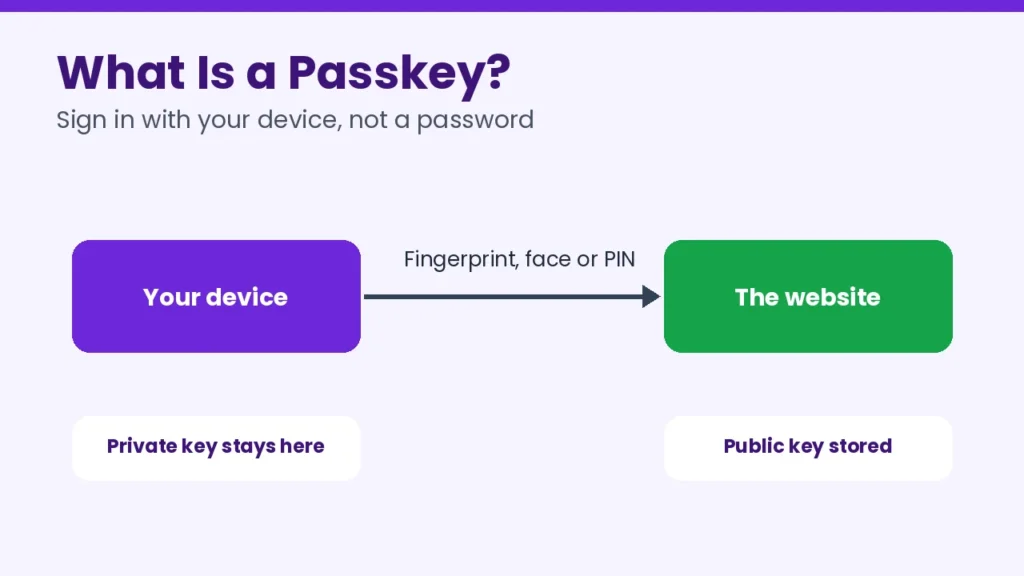
Each passkey is a cryptographic key pair made for one website. One half, the public key, is shared with the website. The other half, the private key, stays on your device or in your password manager and is never sent. When you sign in, your device uses the private key to prove it is you, after you unlock it with a fingerprint, face scan or PIN. A fake website cannot trick you into handing over a password, because there is no password to hand over. That is why the FIDO Alliance calls passkeys phishing-resistant.
Passkey vs Password vs 2-Step Verification
| Feature | Password | Password plus 2-step code | Passkey |
|---|---|---|---|
| What you type | A password | A password and a code | Nothing. You unlock your device |
| Can be phished | Yes | Often, if the code is entered on a fake site | Designed to resist phishing |
| Can be reused or guessed | Yes | The password can be | No, each passkey is unique to a site |
| Speed | Slow | Slower | Fast |
Google also notes that if your account uses 2-step verification, a passkey skips the second step because unlocking your device already proves that you have it.
What You Need Before You Start
- A phone with Android 9 or iOS 16 or newer, or a computer with Windows 10, macOS Ventura or ChromeOS 109 or newer (these are Google’s stated minimums).
- A screen lock, fingerprint or face unlock turned on.
- A personal device that you control, not a shared or public computer.
How to Create a Passkey for Your Google Account
- Open your browser and go to myaccount.google.com, or visit g.co/passkeys.
- Choose Security, then open Passkeys and security keys.
- Select Create a passkey.
- Confirm with your fingerprint, face scan or device PIN.
- Next time you sign in, choose the passkey option instead of typing your password.
Google’s community guide explains that adding a passkey does not change or remove your existing sign-in or recovery methods. You can read it in the Google passkey FAQ.
How to Use Passkeys on Windows
On Windows, passkeys work with Windows Hello. Microsoft says that by default Windows offers to save the passkey on the PC itself, protected by your fingerprint, face or PIN, and that Windows 11 version 22H2 with the KB5030310 update added native passkey management. When you visit a site that supports passkeys, Windows prompts you to use Windows Hello to sign in. Read Microsoft’s guide to passkeys in Windows. Keep Windows up to date, as explained in our guide to Windows 11 24H2 end of support.
How to Use Passkeys on iPhone, iPad and Mac
Apple saves passkeys in your iCloud Keychain, so they can sync across your Apple devices. When a website or app offers to create a passkey, choose it and confirm with Face ID or Touch ID. Because menu names change between iOS and macOS versions, follow Apple’s own support guide for your device to see your saved passkeys.
How to Set Up Passkeys on Other Websites
- Sign in to the website or app the usual way.
- Open Account, Security or Sign-in settings.
- Look for Passkeys or Create a passkey.
- Confirm with your fingerprint, face or PIN.
- Many sites also offer a passkey when you create a new account.
Start with your most important accounts, such as your email, bank and payment apps, because they are the ones attackers want most.
Where Passkeys Are Stored
| Platform | Where the passkey lives | Syncs to other devices? |
|---|---|---|
| Google Account | Google Password Manager | Yes, across devices signed in to your Google Account |
| Apple devices | iCloud Keychain | Yes, across your Apple devices |
| Windows | Windows Hello, saved on the PC by default | Depends on how you save it |
| Password managers | The manager’s vault | Yes, if the manager supports passkeys |
Limits and Safety Tips
- Not every site supports passkeys yet. You will still need passwords for some accounts.
- Do not create passkeys on shared computers. Google advises creating them only on personal devices that you control.
- Keep recovery methods ready. If you lose your phone, you need a way back in.
- Use a strong screen lock. Your passkey is only as safe as the way you unlock the device.
- Do not delete your password right away. Use the passkey for a while until you are comfortable.
- Keep your devices updated. Updates fix security problems.
More step-by-step help is in our easy tech tips.
Frequently Asked Questions
What is a passkey?
A passkey is a pair of cryptographic keys made for one website. One half is shared with the site and the other half stays on your device. You sign in by unlocking your device with a fingerprint, face scan or PIN.
Are passkeys safer than passwords?
Yes, in most ways. They cannot be guessed or reused, and the FIDO Alliance describes them as phishing-resistant, because there is no password to give to a fake site.
What happens if I lose my phone?
If your passkeys sync through your Google, Apple or password manager account, you can get them back on a new device by signing in to that account. Keep your recovery email and phone number current.
Do passkeys replace two-step verification?
For accounts that use them, a passkey already proves that you have your device, so Google says it skips the second step. Adding a passkey does not remove your existing recovery options.
Do I still need passwords?
For now, yes. Many websites do not support passkeys yet, so keep strong, unique passwords for those accounts.
Final Thoughts: Start With Your Email
Passkeys make signing in faster and safer. Set one up for your Google or Apple account today, then add your bank and payment apps. Keep your recovery details current, create passkeys only on your own devices, and keep your passwords for sites that do not support passkeys yet.

Leave a Reply