
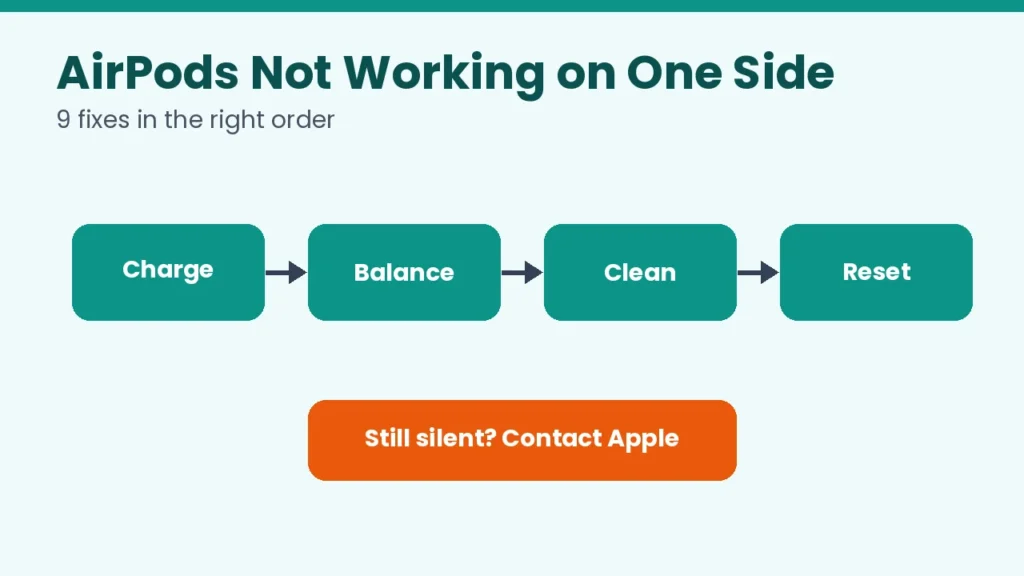
AirPods not working on one side is a frustrating problem, but it is often fixable at home in a few minutes. One AirPod may play no sound, or one may sound much quieter than the other. This guide gives nine fixes in a sensible order, based on Apple’s own support advice, plus clear signs that it is time to get them serviced.
Quick answer
Make sure the charging case is fully charged, put both AirPods in the case for a few seconds and take them out again, and check that the left and right balance slider is centred in Settings, Accessibility, Audio & Visual. If one AirPod is still silent, clean the speaker mesh gently and reset the AirPods. If that fails, contact Apple Support.
Key takeaways
- A low battery in the case or in one AirPod is a common cause.
- The audio balance slider can make one side quieter by mistake.
- Dirt and earwax on the speaker mesh can block sound.
- A reset is a safe step that fixes many connection faults.
- If a reset and cleaning do not help, it may be a hardware fault that needs service.
Why is one AirPod not working?
| Symptom | Likely cause | Fix number |
|---|---|---|
| No sound in one AirPod | Low battery, bad connection | 1, 2, 5 |
| One side quieter | Balance slider, dirty mesh | 3, 4 |
| One AirPod will not charge | Dirty contacts, case fault | 2, 8 |
| Still silent after everything | Possible hardware problem | 9 |
9 fixes for AirPods not working on one side
Fix 1: Charge the case fully
Apple’s first suggestion for a silent AirPod is to make sure the charging case is fully charged. Put both AirPods in the case, close the lid and plug the case in, or place it on a wireless charger if it supports one. Leave it for a while, then test again.
Fix 2: Put the AirPod back in the case
Place the AirPod that is not working in its slot for a few seconds. The status light should show it is charging. Take both out and try again. If one AirPod does not charge at all, jump to Fix 8.
Fix 3: Check the left and right balance
- On your iPhone, open Settings.
- Tap Accessibility, then Audio & Visual.
- Look at the Balance slider and make sure it sits in the middle.
On a Mac, open System Settings, Sound and check the balance there. A slider pushed to one side is an easy mistake and a very common reason one ear sounds low.
Fix 4: Clean the speaker mesh gently
Earwax and dust can block the small speaker mesh. Use a dry, soft, lint-free cloth, or a clean, dry cotton swab, to wipe the mesh. Do not use liquids, sharp objects or compressed air, and do not push anything into the mesh.
Fix 5: Turn Bluetooth off and on, then reconnect
Open Control Center, switch Bluetooth off, wait ten seconds and switch it on again. Open the case lid near your iPhone and reconnect. Also restart your iPhone, because a software glitch on the phone can look like an AirPods fault.
Fix 6: Check the controls on AirPods Pro
On some AirPods models you can adjust the volume on the AirPod itself by swiping. Make sure you did not turn one side down by accident. Check your press-and-hold settings in the AirPods settings page on your iPhone, so that both left and right do what you expect.
Fix 7: Update your iPhone
Open Settings, General, Software Update and install any update. Updates often fix Bluetooth and audio bugs. If you do not have enough space, follow our guide to fixing iPhone storage full, and see what is new in iOS 27.2.
Fix 8: Reset your AirPods
Apple says to reset your AirPods if one is still not working. A reset is more than a restart.
- Put both AirPods in the case and close the lid for about 30 seconds.
- On your iPhone, open Settings, Bluetooth, tap the i next to your AirPods and choose Forget This Device.
- With the lid open and the AirPods inside, press and hold the setup button on the back of the case for about 15 seconds, until the status light flashes amber and then white.
- Bring the case close to your iPhone with the lid open and follow the prompts to connect again.
Fix 9: Contact Apple Support
If one AirPod is still silent after cleaning and a reset, or if it also drains the case battery, this can point to a hardware problem. Check your warranty or AppleCare coverage and arrange service through Apple’s official support page. You cannot usually fix an internal fault at home, and opening the AirPods can void coverage.
Mistakes to avoid
- Using water, alcohol or sharp tools on the speaker mesh.
- Resetting only one AirPod. Reset both together in the case.
- Buying a single replacement from a random seller. Replacement parts from unofficial sellers can be fake or poorly matched.
- Calling numbers from forum posts. Use Apple’s official support site only.
Frequently asked questions
Why is only one of my AirPods working?
It is often a low battery, a dirty speaker mesh, a balance setting or a connection fault. Work through the fixes above in order.
Why is one AirPod quieter than the other?
Check the balance slider first, then clean the mesh on the quiet side.
Will resetting delete anything?
No personal data is lost. You only need to pair the AirPods with your devices again.
Can I use just one AirPod?
Yes, you can use one AirPod, but a fault is still worth fixing, especially if it keeps coming back.
Does this work for AirPods Pro and AirPods Max?
The first fixes apply to most models. AirPods Max have no case, so charge them directly, and follow Apple’s page for your exact model for reset steps.
Final thoughts
Start with charging, the balance slider and cleaning, then reset the AirPods. Most one-sided problems end there. If not, get them checked by Apple. For more simple phone fixes, visit our easy tech tips.

Leave a Reply