
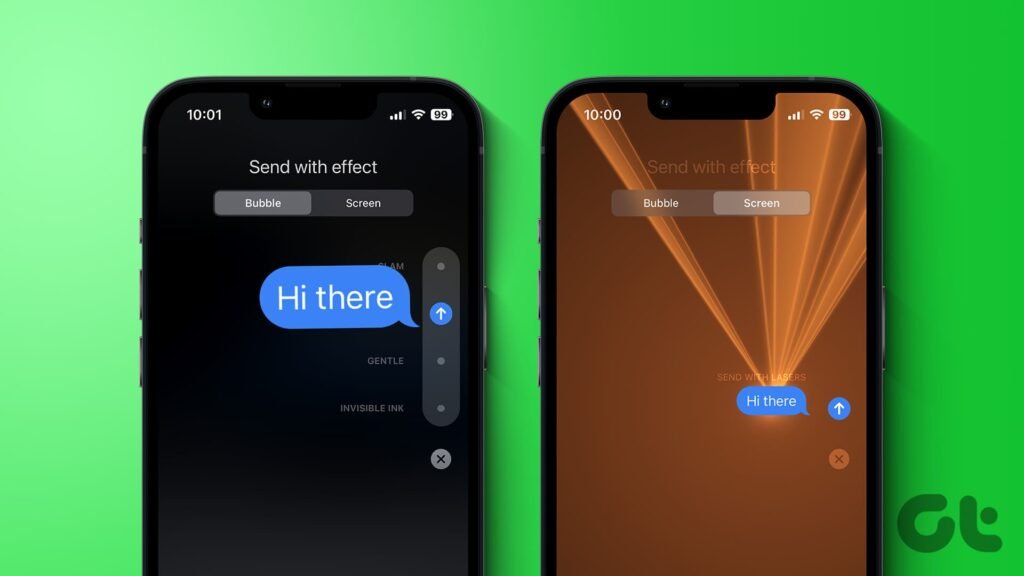
The pew pew iPhone trick is a hidden effect in Apple’s Messages app. When you type “pew pew” in an iMessage and send it, colorful laser beams light up the screen, and the person you texted sees the same show when they open the message. It works on iPhone, iPad and Mac, but only in iMessage, which uses blue bubbles. This guide shows you how to trigger it, how to send other effects by hand, and how to fix it when the lasers do not show up.
Key Takeaways
- Typing “pew pew” in an iMessage triggers the full-screen Lasers effect.
- It only works in iMessage. Regular green-bubble texts do not animate.
- You can also send Lasers manually by pressing and holding the Send button.
- If the effect does not play, the most common cause is the Reduce Motion setting.
- You can replay a received effect by tapping the Replay button under the message.
What Does “Pew Pew” Do on an iPhone?
“Pew pew” is a trigger phrase. When Messages sees it in an iMessage, it plays a full-screen animation called Lasers, in which neon beams sweep across the screen. Reports say the effect also plays a short electronic beat or sound. You do not have to tap anything extra, because the app recognizes the phrase on its own. Apple builds this into Messages as part of its message effects, which include bubble effects and full-screen effects.
Looking for a game instead? There are also apps called PewPew on the App Store, including a retro shoot-’em-up. This guide covers the Messages effect only.
How to Trigger the Pew Pew Effect: Step by Step
- Open the Messages app on your iPhone.
- Open a conversation with someone who also uses iMessage. Their bubbles should be blue, not green.
- Type pew pew as your message.
- Tap the blue Send arrow.
- Watch the laser show. Your friend sees it as soon as they open the message.
To see it again, tap the Replay button under the message. Apple’s guide to message effects with iMessage explains replays and the other effects.
Other Words That Trigger Effects
| Type this | Effect you get |
|---|---|
| pew pew | Lasers |
| Happy Birthday | Balloons |
| Congratulations | Confetti |
Some guides also list other holiday phrases, such as “Happy New Year” and “Eid Mubarak”, which trigger their own animations. The effect list can change between iOS versions, so test a phrase before you rely on it.
How to Send the Lasers Effect Manually
You do not need the magic words. You can attach Lasers to any message:
- Type your message in an iMessage conversation.
- Press and hold the blue Send arrow.
- Tap the Screen tab, or swipe left, to see the full-screen effects.
- Swipe through the options, such as Balloons, Confetti, Lasers and Fireworks, until you reach Lasers.
- Tap the Send arrow to send it.
The Bubble tab changes how a single message bubble looks, with options such as Slam, Loud, Gentle and Invisible Ink. The Screen tab animates the whole screen. The iMore guide to bubble and screen effects shows each one in detail.
Why Is Pew Pew Not Working on My iPhone?
If you see only the words, or a note such as “(sent with Lasers)”, something is blocking the animation. Work through these checks in order.
| Problem | Why it happens | Fix |
|---|---|---|
| Green bubble | The chat is SMS, not iMessage | Chat with someone who uses iMessage, and make sure iMessage is on |
| Reduce Motion is on | This setting limits or disables message effects | Turn Reduce Motion off, or turn on Auto-Play Message Effects |
| Effect played once | Effects play when the message is opened | Tap Replay under the message |
| Friend sees text only | They use Android or have iMessage off | They will see the effect described in text |
| Effects still missing | A glitch in iMessage | Turn iMessage off, wait a few seconds, turn it on, and restart your iPhone |
Fix 1: Check Reduce Motion
Apple Support says you cannot send or receive bubble effects or full-screen effects in Messages when Reduce Motion is on. You can read an Apple Support reply in this Apple Community thread. To fix it:
- Open Settings.
- Tap Accessibility, then Motion.
- Turn Reduce Motion off, or keep it on and turn on Auto-Play Message Effects.
Fix 2: Make sure it is an iMessage
Message effects need iMessage. If the bubble is green, the message went out as a regular text. Go to Settings, then Messages, and turn on iMessage. You also need an internet connection, because iMessage sends over Wi-Fi or mobile data.
Fix 3: Restart iMessage and your iPhone
Some users fixed missing effects by turning iMessage off, waiting a few seconds and turning it back on. Then restart your iPhone and try again. Keep your phone updated too, because Apple improves Messages in iOS updates. Our guide to iOS 27.2 features and how to update explains how.
Do Pew Pew Effects Work on Android or SMS?
No. Android phones and people who do not use iMessage will not see the animation. They usually see a text note, such as “Sent with Lasers” or “Sent with Balloons”. This is why the effect only feels magical between iPhone users.
How to Turn Message Effects Off
Not a fan of surprise animations? Go to Settings, then Accessibility, then Motion, and turn on Reduce Motion. Then switch Auto-Play Message Effects off. Your messages still send normally, but effects will not play on their own, and you can tap Replay if you change your mind.
Tips for Using Message Effects
- Mind the sound. Lasers can play a beat, so use it when your friend can hear it.
- Do not overdo it. A few effects are fun, but too many can annoy people.
- Be kind to people with motion sensitivity. Reduce Motion exists for a reason.
- Use it for the right moments. Birthdays, wins and jokes are perfect.
Want more phone fixes? Browse our Mobile Apps guides, learn how to fix a full iPhone storage, or read our easy tech tips.
Frequently Asked Questions
What happens when you type pew pew on an iPhone?
If you send “pew pew” in an iMessage, the Messages app plays the full-screen Lasers effect, and your recipient sees it when they open the message.
Why is the pew pew effect not working?
The most common reasons are that the chat is not iMessage, Reduce Motion is on, or Auto-Play Message Effects is off. Check those settings first.
Does pew pew work on green bubbles?
No. Message effects need iMessage. Regular SMS texts do not animate, and Android users see only a text description of the effect.
How do I send lasers on iMessage without typing pew pew?
Type your message, press and hold the blue Send arrow, open the Screen tab, swipe to Lasers, and tap Send.
How do I replay a message effect?
Tap the Replay button under the message that contains the effect.
Can I turn off message effects?
Yes. Go to Settings, Accessibility, Motion, turn on Reduce Motion, and turn off Auto-Play Message Effects.
Final Thoughts: A Small Trick With a Big Smile
The pew pew iPhone trick takes two seconds and works on any iMessage chat. If it does not play, check Reduce Motion, make sure the bubble is blue, and use the Screen tab as a backup. Try it on a friend today, and explore the other effects in the Messages app.


Leave a Reply