
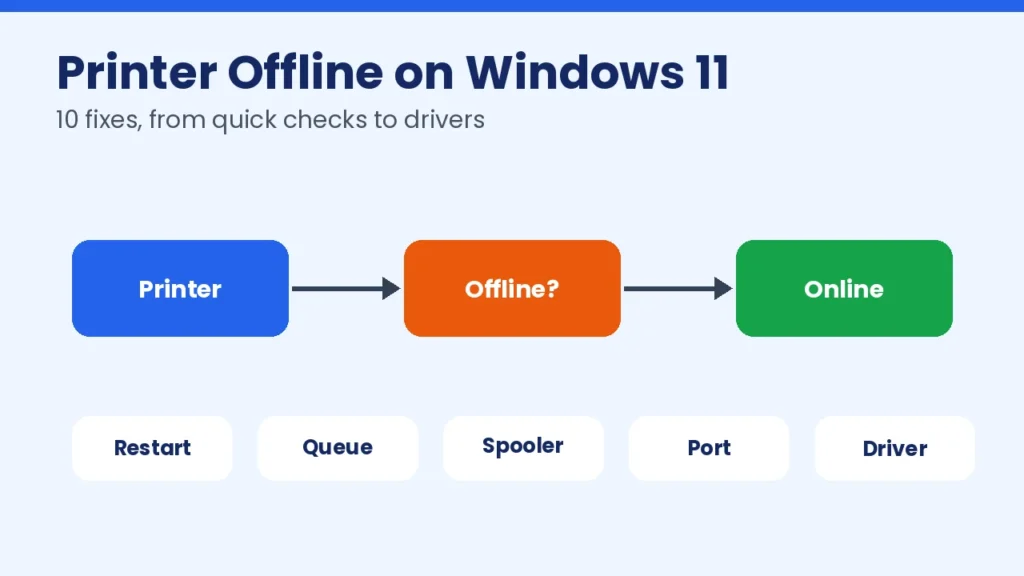
Printer offline on Windows 11 is one of the most common printing errors. Your printer is on, the lights are green, and Windows still says it cannot reach it. The good news is that the cause is usually a setting, a stuck print queue, a network change or an outdated driver, and you can fix it yourself. This guide gives ten fixes in the best order, starting with the quickest and safest.
Last updated: November 17, 2026. These steps follow Microsoft’s printer troubleshooting guidance. Menu names can differ a little between Windows 11 versions and printer brands, and we have not tested every printer model, so check what you see on your own screen.
Quick answer
Turn the printer off and on, make sure it is on the same network as your PC, then open Settings, Bluetooth & devices, Printers & scanners. Select your printer, open Printer queue or Printer properties, and make sure Use Printer Offline and Pause Printing are not ticked. If it still shows offline, run Microsoft’s printer troubleshooter in the Get Help app, then restart the Print Spooler service and reinstall the printer.
Key takeaways
- “Offline” usually means Windows cannot talk to the printer, not that the printer is broken.
- Start with the simple checks: power, cables, Wi-Fi and the offline setting.
- Microsoft recommends running its automated printer troubleshooter in the Get Help app first on Windows 11.
- Network printers often go offline after a router or IP address change.
- Reinstalling the printer is a safe last software step before you contact the maker.
Why does Windows 11 say my printer is offline?
| Cause | What you will notice | Fix number |
|---|---|---|
| Printer asleep or not connected | Status stays offline after a power cycle | 1, 2 |
| “Use Printer Offline” or “Pause Printing” is on | Jobs stay in the queue | 3 |
| Wrong default printer | Jobs go to PDF or OneNote | 4 |
| Stuck print queue or spooler problem | The first job never finishes | 5, 6 |
| Wi-Fi or IP address change | Printer worked yesterday, not today | 7, 8 |
| Bad or old driver | Offline after a Windows update | 9, 10 |
10 fixes for printer offline on Windows 11
Fix 1: Restart the printer, PC and router
Turn the printer off, unplug it for about 30 seconds, then plug it back in. Restart your PC. If you use a Wi-Fi printer, restart the router as well. This clears many temporary connection faults. Wait until the printer shows it is ready before you test.
Fix 2: Check the connection
- USB printer: reconnect the cable, try another port and avoid USB hubs.
- Wi-Fi or network printer: check that the printer shows a connected Wi-Fi icon and that your PC is on the same network and not on a guest network.
- Bluetooth printer: make sure Bluetooth is on and the printer is paired.
If your Wi-Fi itself is the problem, follow our guide to fixing WiFi connected but no internet.
Fix 3: Turn off “Use Printer Offline” and “Pause Printing”
- Open Settings, then Bluetooth & devices, then Printers & scanners.
- Select your printer and open Open print queue.
- Click Printer in the menu bar.
- If Use Printer Offline or Pause Printing has a tick, click it to remove it.
Microsoft’s own guidance tells you to select the printer, set it as the default and clear these two options if they are selected.
Fix 4: Set the right default printer
Windows can change your default printer based on where you last printed. If it switches to Microsoft Print to PDF or OneNote, your real printer can look offline or ignored. In Printers & scanners, turn off Let Windows manage my default printer, select your printer and choose Set as default.
Fix 5: Run the Windows printer troubleshooter
On Windows 11, Microsoft says to start with the automated printer troubleshooter in the Get Help app. Open the Start menu, search for Get Help, then type “printer offline” and follow the prompts. It runs diagnostics and tries to fix the most common printer problems for you.
Fix 6: Clear the print queue and restart the Print Spooler
A stuck job can block everything behind it.
- Press Windows + R, type
services.mscand press Enter. - Find Print Spooler, right-click it and choose Stop.
- Open File Explorer and go to
C:\Windows\System32\spool\PRINTERS. Delete the files inside the folder, but not the folder itself. - Go back to Services, right-click Print Spooler and choose Start.
- Make sure Startup type is set to Automatic in its properties.
Only delete files in that folder. If you are not comfortable with this step, skip to Fix 9.
Fix 7: Give a network printer a fixed IP address
Network printers can receive a new IP address from the router after a restart. Your PC then keeps looking at the old address and shows the printer as offline. Print the printer’s network configuration page, note its IP address, and in your router settings reserve that address for the printer, a feature often called DHCP reservation. Your router’s manual explains how.
Fix 8: Check the printer port
- In Printers & scanners, select the printer and open Printer properties.
- Go to the Ports tab.
- Check that the port that is ticked matches the printer’s current IP address, or choose the correct USB or WSD port.
If the port shows an old address, add a new standard TCP/IP port with the new address and select it.
Fix 9: Update the printer driver
Open Settings, Windows Update and install any waiting updates. Then go to the printer maker’s support page, enter your exact model number and download the latest Windows 11 driver. Install it and restart the PC. For general PC health, see our guide to fixing a slow Windows 11 PC.
Fix 10: Remove and add the printer again
- In Printers & scanners, select the printer and choose Remove.
- Restart the PC.
- Click Add device and wait for Windows to find the printer.
- Select it and let Windows install it.
Microsoft notes that some ARM-based PCs, including Copilot+ PCs, may fail to install a printer with the manufacturer’s own installer. In that case, use Add device in Settings instead of the downloaded installer, unless the maker gives specific advice for Windows on ARM.
Printer shows offline only after a Windows update
If the problem began right after an update, work through Fixes 6, 9 and 10 first. Keeping Windows current matters too, so check our guide on Windows 11 24H2 end of support and how to update.
Mistakes to avoid
- Calling “printer support” numbers from random web pages. Fake support pages and forum posts are common for printer problems. Use only the maker’s official site or Microsoft’s support pages.
- Downloading drivers from unknown sites. Get drivers from the printer maker or Windows Update.
- Deleting system folders. Only clear the files inside the spool PRINTERS folder, and only with the spooler stopped.
- Using a guest Wi-Fi network for the PC while the printer is on the main network.
When to contact the printer maker
If the printer shows an error on its own screen, prints a test page from its own menu but not from Windows, or fails on a second computer too, the fault may be hardware or firmware. Contact the maker through its official support page and mention what you already tried.
Frequently asked questions
Why does my printer say offline when it is on?
Windows cannot reach it. Common reasons are a Wi-Fi or IP address change, the “Use Printer Offline” setting, a stuck print queue or a faulty driver.
How do I turn my printer online in Windows 11?
Open Printers & scanners, select the printer, open the print queue and make sure Use Printer Offline and Pause Printing are not selected. Then restart the printer.
Is it safe to delete files in the spool folder?
Yes, the files inside the PRINTERS folder are temporary print jobs, but stop the Print Spooler service first and do not delete the folder itself.
Why does my printer keep going offline?
Weak Wi-Fi, printer sleep mode and a changing IP address are the usual causes. A fixed IP address and a current driver usually stop it coming back.
Does this work on Windows 10?
Most steps are the same, but menu names differ. Windows 10 no longer gets free security updates after October 14, 2025, so consider moving to Windows 11.
Final thoughts
Printer offline on Windows 11 almost always has a simple cause. Work through the fixes in order, change only one thing at a time and test a print after each. More step-by-step help is in our easy tech tips.

Leave a Reply