
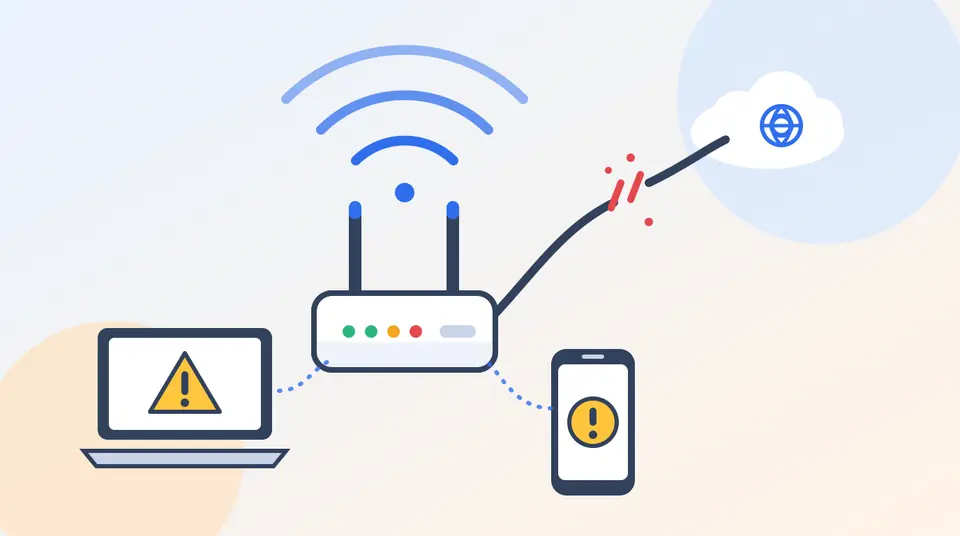
Quick answer: When your device says WiFi is connected but there is no internet, it has reached your router but the router cannot reach the internet, or your device cannot look up websites. First check whether other devices also fail. If they do, restart your modem and router, then call your provider. If only one device fails, forget and rejoin the network, run the fixes for your device below, and change your DNS server if pages still will not load.
Key Takeaways
- “Connected to WiFi” only means your device is talking to the router, not that the internet works.
- Test a second device first. It tells you whether the problem is your device, your router or your provider.
- Restarting the modem and router fixes many cases and takes about five minutes.
- On Windows, run the network commands and try a different DNS server before using Network reset.
- Reset Network Settings on iPhone and Wi-Fi resets on Android erase saved WiFi passwords, so use them late in the process.
Why Does WiFi Say Connected but Have No Internet?
Your phone or laptop connects to your router first. The router then connects to your modem and your internet provider. A top-rated reply in an Apple Community thread puts it simply: being connected to WiFi means you are connected to the router, which does not always mean you are online. The break can happen at several points:
| Where the problem is | Typical signs | Best fix |
|---|---|---|
| Internet provider outage | Every device is offline | Check for an outage, then restart the modem and router |
| Modem or router glitch | Every device is offline or slow | Restart both devices (Fix 2) |
| Saved WiFi data on your device | Only one device is offline | Forget and rejoin the network (Fix 4) |
| DNS problem | Connected, but pages will not load | Flush DNS or change the DNS server (Fixes 7 and 8) |
| VPN or security software | Started after installing an app | Turn it off and test (Fix 11) |
| Public WiFi sign-in page | Hotel, cafe or airport WiFi | Open a browser and complete the sign-in (Fix 12) |
Fixes That Work on Any Device
Fix 1: Test another device and check for an outage
Try the same WiFi on another phone or laptop. Microsoft says that if another device connects fine, the problem is probably your device. Apple gives similar advice: if you cannot get online on your other devices, there might be a service outage, and you should contact your internet provider. You can also check your provider’s website or app on mobile data for outage notices.
Fix 2: Restart your modem and router
This is the fix that solves the most cases. Microsoft’s steps are:
- Unplug the power cable from the modem. If the lights stay on, remove the backup battery.
- Wait at least 30 seconds.
- Put the battery back if you removed it, then plug the modem in and wait until the lights stop blinking.
- Plug the router back in and wait a few minutes for it to start fully.
- Reconnect your device and test again.
Everyone on your WiFi will be disconnected for a few minutes. If you have a combined modem and router, you only need to restart that one device.
Fix 3: Toggle WiFi and Airplane mode, then restart your device
Turn WiFi off, wait a few seconds and turn it on again. Check that Airplane mode is off. Then restart your phone or computer. A restart clears many small, temporary network glitches.
Fix 4: Forget the network and reconnect
Saved network details can go out of date. Make sure you know the WiFi password, then forget the network and join it again:
- Windows: Settings, Network & internet, Wi-Fi, Manage known networks, select your network, then Forget.
- iPhone: Settings, Wi-Fi, tap the blue “i” next to your network, then Forget This Network.
- Android: Settings, Network & internet (or Connections), Wi-Fi, tap your network, then Forget. Menu names vary by brand.
Fix 5: Try the other WiFi band
Many routers broadcast two networks, one on 2.4 GHz and one on 5 GHz. They often appear as separate names. Microsoft suggests trying the other one if your list shows both. The 2.4 GHz band reaches farther, while 5 GHz is usually faster at close range.
Windows 10 and Windows 11 Fixes
Fix 6: Run the Network troubleshooter
On Windows 11, Microsoft says to start with the automated Network and Internet troubleshooter in the Get Help app. You can also open Settings, System, Troubleshoot, Other troubleshooters, and run Network and Internet. Follow the on-screen steps.
Fix 7: Run the network reset commands
These commands reset your connection settings and clear the DNS cache. Search for Command Prompt, choose Run as administrator, and run each line, pressing Enter after each:
ipconfig /release
ipconfig /renew
ipconfig /flushdns
netsh winsock reset
netsh int ip reset
Microsoft lists these commands in its Wi-Fi troubleshooting guide. Your connection will drop briefly after ipconfig /release. Restart your PC when you finish.
Fix 8: Change your DNS server
DNS turns website names into addresses. If your provider’s DNS is slow or down, the WiFi icon shows connected but pages do not load. To switch on Windows 11:
- Open Settings, then Network & internet, then Wi-Fi.
- Click the name of your connected network.
- Next to DNS server assignment, click Edit and choose Manual.
- Turn on IPv4 and enter the preferred and alternate addresses from the table below, then save.
| Provider | Preferred DNS | Alternate DNS |
|---|---|---|
| Google Public DNS | 8.8.8.8 | 8.8.4.4 |
| Cloudflare | 1.1.1.1 | 1.0.0.1 |
If this fixes the problem, your provider’s DNS was the cause. You can keep the new settings or go back to Automatic (DHCP) at any time.
Fix 9: Check the WiFi driver and power saving
- Ping your router. Run
ipconfig, note the Default gateway address, then runpingfollowed by that address. Replies mean your PC reaches the router, so the fault may be the modem or your provider. No replies point to the router connection. - Update Windows. Open Settings, Windows Update, Check for updates.
- Reinstall the adapter driver. In Device Manager, expand Network adapters, right-click your WiFi adapter, choose Uninstall device, then restart. Windows reinstalls the driver. Have a backup driver ready first.
- Turn off adapter power saving. In the adapter Properties, open Power Management and untick the option that lets the computer turn off the device to save power.
Fix 10: Use Network reset as a last resort
On Windows 11, open Settings, Network & internet, Advanced network settings, then Network reset. On Windows 10, open Network & internet, Status, then Network reset. Microsoft says this removes your network adapters and their settings, and it should be the last step you try. You will need to reconnect to WiFi and set up any VPN software again.
iPhone and iPad Fixes
Fix 11: Turn off VPN, then reset Network Settings
Apple lists VPN and security software as a possible cause, so turn off any VPN and test. Check that your router is on and connected to the modem. If you still see “No Internet Connection” under the WiFi name:
- Restart your iPhone, and restart your router and modem.
- Open Settings, then Wi-Fi, tap the “i” next to your network, and check that an IP address, subnet mask and router address appear.
- Go to Settings, General, Transfer or Reset iPhone, Reset, then Reset Network Settings.
Apple notes that Reset Network Settings also resets WiFi networks and passwords, cellular settings, and VPN and APN settings. If you reset and still cannot get online, Apple says to contact your internet provider. Its WiFi troubleshooting guide also recommends updating your router firmware. Our Tech Tips and How-To section has more phone fixes.
Android Fixes
Fix 12: Check Private DNS, public WiFi sign-in and network resets
- Complete the sign-in page. Hotel, cafe and airport WiFi often needs you to open a browser and accept terms before the internet works.
- Check Private DNS. Open Settings, Network & internet, Private DNS (it may sit under Advanced). If it points to a hostname that is blocked or wrong, set it to Automatic or Off and test.
- Set the time automatically. Under Settings, System, Date & time, turn on Set time automatically.
- Reset WiFi settings. Go to Settings, System, Reset options, then Reset Wi-Fi, mobile & Bluetooth. This erases saved WiFi networks and Bluetooth pairings, so use it last.
Menu names change between Pixel, Samsung and other brands. Use the search bar in Settings if you cannot find an option.
When to Call Your Internet Provider
Call your provider if every device is offline after you restart the modem and router, if the modem shows warning or error lights, or if you can reach the router but pings and pages never reach the internet. If a device works on an Ethernet cable but not on WiFi, update the router firmware or check the router settings. Tell the support agent which steps you already tried.
How to Prevent It Next Time
- Keep your router firmware and device software up to date. Our guide to the Windows 11 24H2 end of support explains how to update.
- Place the router in an open, central spot, away from thick walls and metal objects.
- Restart the router now and then, for example once a month.
- Save your WiFi password in a password manager so forgetting a network is never a problem.
- Read our easy tech tips for other quick wins.
Frequently Asked Questions
Why does my WiFi say connected but no internet?
Your device is connected to the router, but the router cannot reach the internet or your device cannot look up websites. Common causes are a modem or router glitch, a provider outage, DNS problems and saved network data.
How do I fix WiFi connected but no internet on Windows 11?
Restart your modem and router, run the Network and Internet troubleshooter, then run the ipconfig and netsh commands in an administrator Command Prompt. If pages still will not load, change your DNS server. Use Network reset only as a last step.
How do I fix no internet on my iPhone when WiFi is connected?
Turn off any VPN, restart your iPhone, router and modem, forget and rejoin the network, then try Settings, General, Transfer or Reset iPhone, Reset, Reset Network Settings. This also erases saved WiFi passwords.
Does changing DNS fix WiFi connected but no internet?
It can, when the cause is your provider’s DNS server. Switching to a public DNS such as Google 8.8.8.8 or Cloudflare 1.1.1.1 often restores browsing in that case. It will not help if the internet connection itself is down.
How long should I wait after restarting the router?
Wait until the modem lights stop blinking and the router has fully started, which usually takes a few minutes. Then reconnect your device.
Is it my router or my internet provider?
If every device is offline, it is the router, modem or provider. If you can ping the router but nothing beyond it works, the modem or provider is more likely. If only one device is offline, the problem is probably on that device.
How We Checked This Guide
We built the steps from Microsoft’s and Apple’s official support pages and cross-checked the Android steps against general guidance. We did not test every router or phone model, and menu names vary by brand and software version, so use the search bar in Settings if a name looks different on your device.

Leave a Reply