Short answer: myLexia is the website for teachers and school staff. Students do not use it. A student signs in to Lexia Core5 or PowerUp through the school’s own route: the Clever or ClassLink portal, the Lexia login page with a school-issued username and password, or the Lexia app on a school-approved device. If a student cannot sign in, the teacher can check or reset the account in myLexia. Programs and set-ups differ by school, so always follow your school’s instructions first.
Many families search for “myLexia student login” and land on a page that does not fit. That is because the two names get mixed up. This guide explains the difference, shows each sign-in path step by step, and lists the fixes that solve most problems. TechPks is an independent guide and is not affiliated with Lexia Learning.
What is the difference between myLexia and the Lexia student login?
Lexia has two sides. The student side is where children do their reading activities. The educator side is myLexia, where teachers see reports, manage classes and look after accounts. The same school account sits behind both, but each side has a different screen and a different job.
| Question | Student side | myLexia (educator side) |
|---|---|---|
| Who uses it? | Children | Teachers, school admins |
| What is it for? | Doing lessons and activities | Reports, rosters, usernames, passwords |
| How do you sign in? | Clever, ClassLink, or username and password | Educator email and password |
| Can parents use it? | Yes, to help the child sign in | No, it is for school staff |
If you are a teacher, you may find our overview in how do we work with Lexia useful, because it explains how the dashboard, classes and weekly routines fit together.
How do students sign in to Lexia? Three common routes
Schools choose the route. Ask the teacher which one your child should use. Using a different route from the one the school set up is a common reason for “account not found” messages.
Route 1: Sign in through Clever or ClassLink
Clever and ClassLink are single sign-on portals. A child signs in once and then clicks the Lexia icon, so there is no separate Lexia password to remember.
- Open your school’s Clever or ClassLink page. Use the link the school gave you.
- Sign in with the student’s school credentials or badge.
- Click the Lexia Core5 or PowerUp icon.
- Wait for the program to load. Do not click again while it is loading.
If the portal says there is a problem, see our fixes in Lexia Core5 Clever login error.
Route 2: Sign in with a username and password
Some schools give each child a Lexia username and password. The teacher can look these up in myLexia.
- Open the Lexia student login page that your school recommends.
- If asked to set up the device, enter the teacher’s school email address. This links the browser to the right school.
- Type the username exactly as given. Passwords are usually case-sensitive.
- Select the sign-in button.
Route 3: Use the Lexia app
Core5 has an app for iPad. Install it from the App Store, open it, and sign in the same way the school uses: through Clever or with a username and password. If you see an error screen on an iPad, our guide to the Lexia Core5 iPad app error walks through the checks in order.
How do teachers sign in to myLexia?
Teachers use the educator email address that the school or district registered with Lexia, plus a password they set. Some districts also let staff sign in through a district portal. After signing in, the teacher sees class lists and can open each student’s record.
- Open the myLexia sign-in page.
- Enter your educator email and password.
- Choose your class or school from the home screen.
- Open the student list to view usernames or reset a password.
If you forget your educator password, use the “forgot password” link on the sign-in page. Lexia sends a reset message to the email on file. If that email is old, ask your school’s Lexia administrator to update it.
What should you do if a student cannot sign in?
Work from the simplest cause to the hardest. Most problems are fixed by the first three steps.
- Check the username and password. Look for Caps Lock, extra spaces and letters that look alike, such as a lowercase L and a capital I.
- Confirm the route. If the school uses Clever, do not type a username into the Lexia page. Go through Clever instead.
- Restart and update. Restart the device and update the browser or app.
- Try a normal window. Private windows can erase the device setup every time. Use a regular browser window.
- Check the program. Younger students use Core5, and older students usually use PowerUp. A student in the wrong program may see an enrollment message.
- Ask the teacher. Only the school can reset a password, change a program or fix a missing roster entry.
For broader problems such as freezing, no sound or a server message, read Lexia Core5 not working: quick fixes.
How do you reset a Lexia student password?
Students and parents usually cannot reset a Lexia password themselves, because the school owns the account. The teacher opens myLexia, selects the student, and changes the password there. If your school uses Clever or ClassLink, the password is the portal password, and the school’s IT staff handle it.
When you contact the teacher, include the child’s full name, class, the device being used and the exact message on the screen. That short note speeds up the fix.
Can students sign in to Lexia at home?
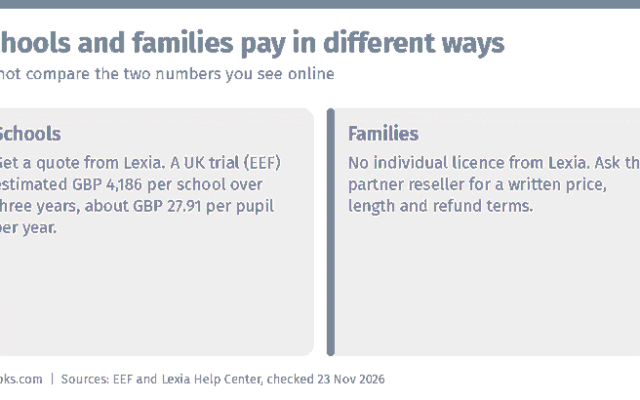
Often yes, but it depends on the school. Many schools allow home use with the same login the child uses in class. Ask the teacher if home access is switched on and which device works best. Families who want Core5 without a school licence should read how much Lexia Core5 costs, which explains Lexia’s official answer about buying for home use.
Tips that prevent most sign-in problems
- Keep one device and one browser for Lexia, so the device setup is not repeated.
- Bookmark the sign-in page your school gave you, instead of searching each time.
- Use headphones, because many activities rely on audio instructions.
- Log out on shared devices, so the next student does not open the wrong account.
- Keep a note of the username in a safe place, but do not share passwords in public messages.
- Update the browser or app when prompted.
Safety and privacy at a glance
Student accounts hold learning data, so treat the login like any school account. Do not post usernames or passwords online. If you think someone else has used the account, tell the teacher so the password can be changed. The U.S. Department of Education’s Student Privacy Policy Office has general guidance for families on student data.
Frequently asked questions
Is myLexia the same as the student login?
No. myLexia is for teachers and school staff. Students sign in through Clever, ClassLink, the Lexia login page or the app.
Where do I find my child’s Lexia username?
Ask the teacher. Usernames are stored in myLexia, and the teacher can print or send them. If your school uses Clever, the child uses the portal login instead.
Why does Lexia keep asking me to set up the device?
The browser is probably deleting its saved data. Stop using private windows, allow cookies, and turn off any cleaner tool that wipes data when the browser closes.
Can parents create a Lexia student account?
No. Accounts are created by the school or, for home use, through Lexia’s partner reseller. Parents cannot add a child to a class on their own.
Does the Lexia login work on a phone?
Lexia’s Core5 is designed for computers, Chromebooks and iPads. Check your school’s guidance before using a phone.
Final thoughts
Remember the main point: myLexia is for teachers, and students sign in through the route the school chose. Start with the username, the route and a restart, and ask the teacher for anything that needs an account change. Your next step: send the teacher the child’s name, device and the exact error message if the first three fixes do not work.
Sources: Lexia Learning Help Center and U.S. Department of Education Student Privacy Policy Office. TechPks is independent and not affiliated with Lexia Learning.
1 comment