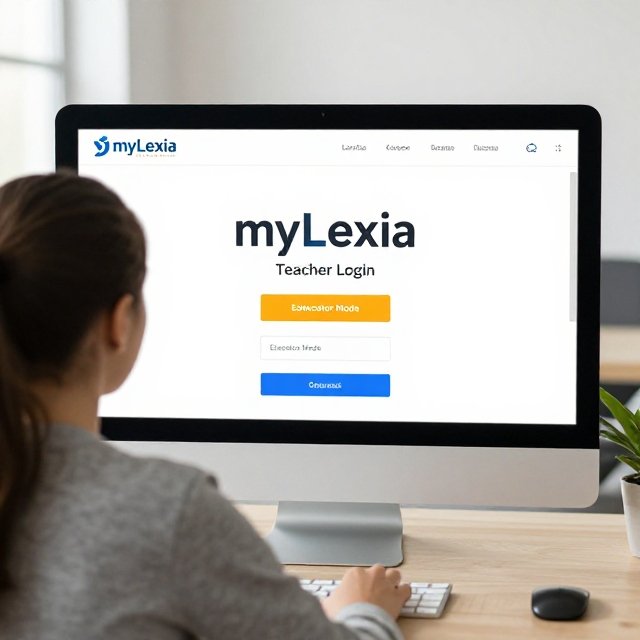
If you are a new teacher using Lexia Core5 Reading, one of the first questions is simple: where do I log in? The answer surprises many educators. There is no single “teacher login” page inside Core5 itself. Instead, teachers use a separate educator portal called myLexia.
This guide explains how the Lexia Core 5 teacher login works, how to get into Educator Mode, what to do if you get locked out, and how to Lexia Help students sign in.
What Is the Lexia Core 5 Teacher Login?
When people search for a Lexia Core 5 teacher login, they usually mean one of two things:
- myLexia, the educator portal where teachers manage classes, view student data, and create or edit student accounts.
- Educator Mode in Core5, which lets teachers preview the student activities without affecting any student data.
Students log in to Core5 separately. Teachers do their main work in myLexia.
What Is myLexia?
myLexia is Lexia’s educator portal. Teachers need it to:
- See and manage student accounts
- View class reports and student progress
- Check usage minutes
- Find resources and site-specific links
- Print class rosters and student login cards
Student accounts must be set up in your school or district’s myLexia site before students can log in to Core5.
How to Log In to myLexia (Teacher Login)
Your login method depends on how your school or district set up Lexia.
Option 1: Direct Login
- Go to myLexia.com.
- Enter the username or email and password your school or Lexia administrator gave you.
- Select Log In.
- Open the Reading tab to find and manage your classes.
Option 2: Login Through Clever or ClassLink
Some districts use single sign-on. In that case:
- Go to your school’s Clever or ClassLink portal.
- Sign in with your district credentials.
- Select the myLexia tile.
Some districts require staff to use this route, so if direct login does not work, check with your school’s IT team.
How to Reset Your myLexia Password
If you forgot your password, go to the myLexia login page and use the password reset option. If your school uses single sign-on, you usually need to reset your password through your district system instead. In that case, contact your school’s IT or Lexia administrator.
How to Use Core5 in Educator Mode
Educator Mode lets you explore Core5 like a student without saving any progress or data. To open it:
- Go to lexiacore5.com.
- If the device asks you to enter a teacher email, enter your school email address.
- On the Core5 login page, enter the same email and password you use for myLexia.
- You will land on the Overview page, where you can read about the program’s goals and structure.
To preview student activities:
- Select Level Select and choose any level.
- Skip the warm-up by selecting the arrow at the bottom right.
- In Unit Select, pick any activity and unit.
This is a great way to understand what your students see before you assign work.
How Students Log In (What Teachers Need to Know)
Teachers often get asked how students sign in. In general:
- Computer: Students can go to lexiacore5.com or use a portal like Clever or ClassLink if your school has one.
- iPad: Students use the Core5 app or open it through the school portal.
- Chromebook: Students use a supported browser like Chrome.
Some tips for smooth student logins:
- Use your site-specific URL. You can find it under the Resources tab in myLexia. With it, students never need to enter a teacher email.
- Set up each device once. If a screen says “Please set up this device,” enter the email of a teacher with a myLexia account. After that, students see your school name and can use their own username and password.
- Print login cards. Teachers can print class rosters and student login cards in myLexia.
- Remind students to log out. If students do not log out properly, some usage minutes may not be recorded.
Common Lexia Core 5 Teacher Login Problems and Fixes
| Problem | What to Try |
|---|---|
| Wrong username or password | Reset your password or ask your Lexia administrator |
| Can’t find the myLexia tile | Ask your school’s IT team to add it to Clever or ClassLink |
| Student accounts missing | Check that students are rostered in myLexia |
| Device asks for a teacher email | Enter a teacher email once to set up the device |
| Educator Mode won’t open | Use the same email and password as your myLexia account |
| Browser problems | Try a supported browser such as Chrome, Edge, Firefox, or Safari |
If nothing works, contact your school’s Lexia administrator or the Lexia support team.
Tips for Teachers Using Lexia Core 5
- Save the myLexia link in your browser bookmarks.
- Check class reports weekly to spot students who need extra support.
- Use Educator Mode to learn the activities before introducing them to students.
- Print login cards for younger students who struggle to type usernames.
- Keep passwords private. Never share your teacher login with students.
Frequently Asked Questions
Where do teachers log in to Lexia Core 5?
Teachers log in through myLexia, the educator portal. Some schools also provide access through Clever or ClassLink.
Can teachers log in to Core5 directly?
Yes, but in Educator Mode. You use your myLexia email and password at lexiacore5.com. Educator Mode does not save any data.
Is myLexia the same as Lexia Core 5?
No. Core5 is the student reading program. myLexia is the teacher portal used to manage accounts and view data.
Why does Core5 ask for a teacher email?
This happens the first time a device is used. The email links the device to your school’s site. Using your site-specific URL avoids this step.
What if I don’t have a myLexia account?
Ask your school or district Lexia administrator to create one for you. Teachers usually cannot create their own staff accounts.
Why are my students not appearing in my class?
Students must be rostered in myLexia first. Check with your administrator if accounts are missing or classes are not set up.
Final Thoughts
The Lexia Core 5 teacher login is simple once you know the difference between myLexia and the student program. Use myLexia to manage classes and view data, use Educator Mode to preview activities, and use your site-specific link to make student logins easier. If you run into trouble, your school’s Lexia administrator is the best first contact.
Disclaimer: This article is for informational purposes only and is not affiliated with Lexia Learning. Login steps may vary by school or district.